 Ashutosh Nayak
Introduction to Frappe Charts and Dynamic Dashboards
In the world of business management, particularly within ERP systems like Frappe/ERPNext, the ability to visualize data effectively is paramount. Dashboards serve as the central hub for understanding key performance indicators (KPIs), tracking progress, and making informed decisions. While Frappe/ERPNext offers robust reporting capabilities, creating truly dynamic and customized dashboards that go beyond standard reports can be a game-changer. This is where the combination of Frappe Charts and Python scripting shines.
Frappe Charts is a powerful charting library built into the Frappe framework. It allows for the creation of a wide variety of interactive and visually appealing charts directly within your Frappe/ERPNext instance. However, to unlock its full potential and create truly dynamic dashboards, we often need to pull in, process, and present data in ways that standard DocType reports or built-in dashboard widgets might not easily accommodate. This is where Python, with its extensive data manipulation libraries, becomes indispensable.
This post will guide you through the process of building dynamic dashboards by leveraging Frappe Charts for visualization and custom Python scripts for data retrieval and processing. We'll explore how to connect custom data sources, perform complex aggregations, and then feed this processed data into Frappe Charts to create insightful visualizations that update in real-time or on demand.
Why Dynamic Dashboards Matter
Static reports can quickly become outdated. Business environments are dynamic, and so should be the way we monitor performance. Dynamic dashboards offer several advantages:
- Real-time Insights: They provide up-to-the-minute information, allowing for agile decision-making.
- Customization: Tailor visualizations to specific user roles, departments, or strategic objectives.
- Interactivity: Users can often drill down into data, filter information, and explore trends.
- Efficiency: Consolidate critical information into a single view, saving time spent navigating multiple reports.
- Proactive Problem Solving: Identify potential issues or opportunities early on.
Understanding Frappe Charts
Frappe Charts is a JavaScript charting library that integrates seamlessly with the Frappe framework. It supports various chart types, including line, bar, pie, donut, percentage, and scatter plots. Its strengths lie in its simplicity of integration within Frappe documents and its responsiveness.
Within Frappe, charts are typically rendered using a FrappeChart class or directly through JavaScript configuration. You define the data format (labels, datasets) and the chart type, and Frappe handles the rendering. The challenge often lies in preparing the data object – ensuring it contains the correct structure and the most relevant information.
The Role of Python in Data Preparation
This is where Python enters the picture. For complex dashboard requirements, the data often needs to be:
- Aggregated: Summing up sales figures by region, averaging customer satisfaction scores, etc.
- Filtered: Focusing on specific date ranges, customer segments, or product categories.
- Joined: Combining data from multiple DocTypes (e.g., Sales Orders, Deliveries, Customers).
- Transformed: Calculating new metrics like profit margins, conversion rates, or trend indicators.
Python, through libraries like pandas, is exceptionally well-suited for these tasks. We can write custom scripts or server-side methods in Frappe that execute Python code to:
- Query Data: Use the Frappe ORM or direct SQL queries to fetch raw data from DocTypes.
- Process Data: Employ
pandasDataFrames to clean, transform, and aggregate the fetched data. - Format Data: Structure the processed data into the specific format required by Frappe Charts.
Practical Example: Sales Performance Dashboard
Let's imagine we want to build a dashboard showing monthly sales revenue and order volume for the current year, broken down by sales region. This requires joining sales order data with customer data (to get the region) and performing monthly aggregations.
Step 1: Define the Data Requirements
We need:
- Month (e.g., 'January', 'February')
- Total Sales Revenue for that month and region
- Total Order Volume for that month and region
- Sales Region
Step 2: Create a Custom Server Script or Python Function
In Frappe/ERPNext, you can create custom server scripts (in custom_scripts.py or a custom app) or define server-side methods within a DocType or custom module.
Let's create a Python function that retrieves and processes this data. We'll use Frappe's ORM for simplicity, but for very large datasets or complex joins, direct SQL might be more performant.
import frappe
from frappe.utils import getdate
import calendar
from collections import defaultdict

@frappe.whitelist()
def get_monthly_sales_by_region():
    sales_data = defaultdict(lambda: defaultdict(lambda: {"revenue": 0, "orders": 0}))
    current_year = getdate(frappe.utils.now_datetime()).year

    # Fetch Sales Orders for the current year
    sales_orders = frappe.get_list(
        "Sales Order",
        fields=["name", "order_date", "base_grand_total", "items"],
        filters=[
            ["docstatus", "=", 2],  # Submitted status
            ["order_date", ">=", f"{current_year}-01-01"],
            ["order_date", "<=", f"{current_year}-12-31"]
        ],
        # Use a join to get customer region if not directly on Sales Order
        # For simplicity here, assuming 'customer_group' or similar is available or fetched separately
        # A more robust solution would join with Customer doctype
        join=[
            "LEFT JOIN `tabCustomer` ON `tabSales Order`.customer = `tabCustomer`.name"
        ],
        fields=["tabSales Order.name", "tabSales Order.order_date", "tabSales Order.base_grand_total", "tabCustomer.customer_group as region"]
    )

    for so in sales_orders:
        order_date = getdate(so.order_date)
        month_num = order_date.month
        month_name = calendar.month_name[month_num]
        region = so.region or "Unassigned"
        revenue = so.base_grand_total

        sales_data[region][month_name]["revenue"] += revenue
        sales_data[region][month_name]["orders"] += 1

    # Format for Frappe Charts
    chart_data = []
    regions = sorted(sales_data.keys())
    months = [calendar.month_name[i] for i in range(1, 13)] # Ensure all 12 months

    for region in regions:
        datasets = [
            {
                "name": f"{region} Revenue",
                "values": [sales_data[region].get(month, {"revenue": 0})["revenue"] for month in months]
            },
            {
                "name": f"{region} Orders",
                "values": [sales_data[region].get(month, {"orders": 0})["orders"] for month in months]
            }
        ]
        chart_data.append({
            "chart_type": "bar",  # Or "line"
            "title": f"Sales Performance: {region}",
            "labels": months,
            "datasets": datasets
        })

    # For a single dashboard, you might want to combine regions or pick top N
    # Or prepare data for multiple charts
    return {"data": chart_data}
Note: This script assumes a region field is available either directly on Sales Order or can be joined from Customer. In a real-world scenario, you'd adjust the join and field selections based on your specific ERPNext setup.
Step 3: Integrate into a Dashboard
Frappe allows creating custom dashboard pages. You can create a new Dashboard DocType (if not available) or customize an existing one. For custom charts, you'll typically add a HTML type report or a custom widget to your dashboard page.
- Create a New Report: Go to
Awesomebar->New Report. ChooseReport Type: Script Report. Select yourcustom_scripts.pyfile (or the module where your function is defined) and theget_monthly_sales_by_regionfunction. - Add to Dashboard: Once the report is created, you can add it as a widget to a dashboard. In the dashboard settings, you can choose to display a chart generated by the script report. Often, you'll need to configure the
chart_jsonoutput in the script report to be directly rendered by Frappe's dashboard.
Alternatively, you can create a custom Module and a Page in Frappe. On this custom page, you can use JavaScript to call your Python function via a REST API endpoint (@frappe.whitelist()) and then use the returned JSON data to initialize Frappe Charts.
JavaScript Example (on a Custom Page):
frappe.pages.my_sales_dashboard = {
    onload: function(wrapper) {
        var me = this;
        me.wrapper = wrapper;
        frappe.call({
            method: "your_app.your_module.your_script.get_monthly_sales_by_region",
            callback: function(r) {
                if (r.message) {
                    me.render_charts(r.message.data);
                }
            }
        });
    },
    render_charts: function(chart_configs) {
        chart_configs.forEach(function(config) {
            let chart_wrapper = $(`<div style='margin-bottom: 20px;'></div>`);
            $(me.wrapper).append(chart_wrapper);
            new frappe.Chart(chart_wrapper[0], config);
        });
    }
};
This JavaScript would be part of your custom page's .js file.
Advanced Considerations and Best Practices
- Performance: For very large datasets, consider optimizing your Python queries. Use
frappe.db.get_listwithget_formatted=Truefor simpler cases, orfrappe.db.sqlfor complex SQL. Indexing relevant database columns is crucial. - Caching: Implement caching for your Python data retrieval functions to avoid redundant computations and database load, especially if the data doesn't change frequently.
- Error Handling: Add robust error handling in your Python scripts to gracefully manage unexpected data or issues.
- User Permissions: Ensure your Python scripts respect user permissions. Frappe's ORM generally handles this, but be mindful if using raw SQL.
- Data Granularity: Decide on the right level of detail for your dashboard. Too much data can be overwhelming; too little might miss critical insights.
- Chart Types: Choose chart types that best represent the data and the insights you want to convey. Bar charts are great for comparisons, line charts for trends, and pie/donut charts for proportions.
Conclusion
By combining the visualization power of Frappe Charts with the data manipulation capabilities of Python, you can create sophisticated, dynamic dashboards that provide unparalleled insights into your business operations within Frappe/ERPNext. This approach allows for deeper analysis, more responsive decision-making, and a truly customized view of your organization's performance. Whether you're a developer looking to extend ERPNext's capabilities or a business analyst seeking richer data insights, mastering this integration will undoubtedly enhance your ability to leverage your ERP data effectively.
Start by identifying a key business question that requires a dynamic visualization, and then experiment with custom Python scripts to fetch, process, and format the data for Frappe Charts. The possibilities for creating intelligent, data-driven dashboards are vast.
Related articles
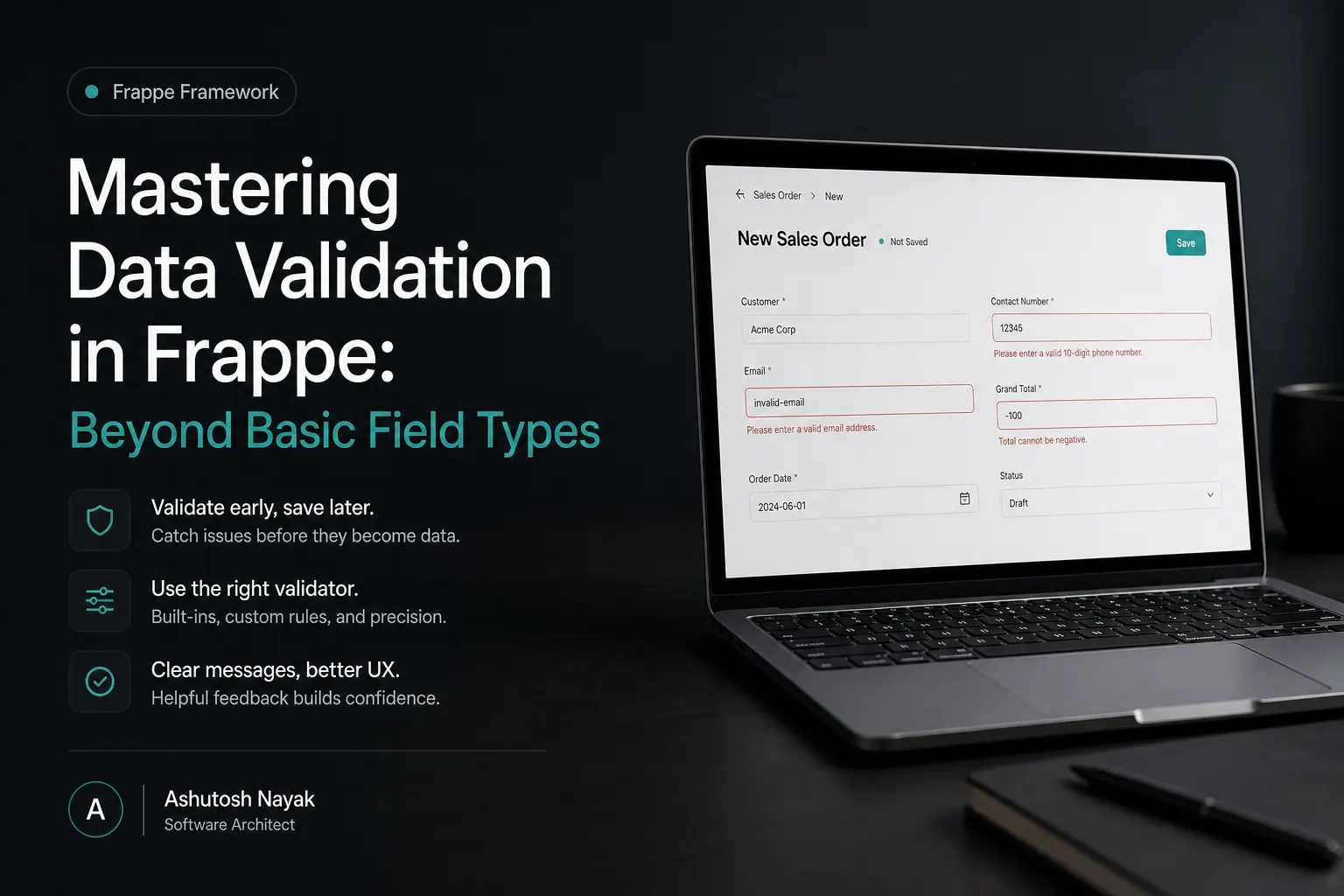
Mastering Data Validation in Frappe: Beyond Basic Field Types
Learn advanced data validation techniques in Frappe/ERPNext to ensure data integrity and build robust applications. Go beyond simple field types.

Beyond Basic CRUD: Enhancing ERPNext with Custom Python Scripts
Learn how to go beyond standard ERPNext features by writing custom Python scripts to automate tasks, integrate systems, and tailor your ERP to unique business needs.

Customizing Frappe/ERPNext: Beyond Standard Features
Learn how to extend Frappe/ERPNext beyond its out-of-the-box capabilities using custom modules, scripts, and integrations for tailored business solutions.
Get new articles in your inbox
Occasional writing on AI, ERP and data analytics — no spam, unsubscribe any time.